FAQ: Frequently Asked Questions about Aelo
Frequently asked questions about Aelo: how much does it cost, what are AeloCoins, which AI models do we measure, do we publish content, and what…
In Aelo, the brand is the starting point for everything: the scan runs for it, it is what we check in AI chat answers, and the tasks in the Tickets module are created for it. Adding a brand takes just a moment: you choose Add brand, enter the name and save.
The second stage is the brand identity: a description of who you are, who you work for and who you compete with. This data is the basis of every full scan, so it’s worth spending a dozen or so minutes on it. We also explain what to enter in each section separately in the article how to fill in your brand identity. Below is a video showing the entire process, followed by a description of each step.
Have three things ready:
If you want Aelo to fill in the brand identity for you, you will also need 25 AeloCoins. Filling it in manually is free.
Click the name of the active brand in the top left corner of the panel. A list of your brands opens. The gear icon next to each brand takes you to its identity. At the bottom of the list there are two options: All brands and Add brand. Choose the second one.
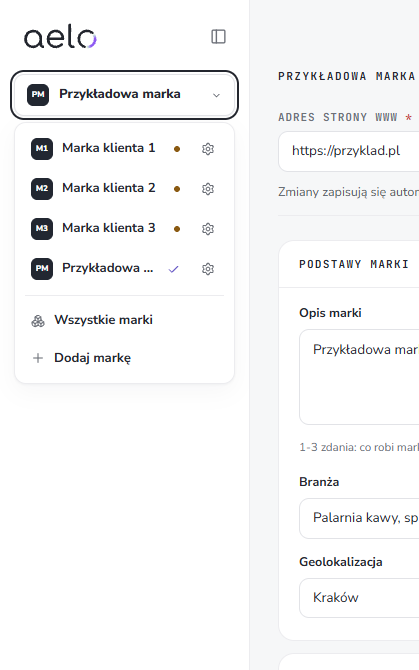
You will find the same button in the top right corner of the view called All brands. This view is useful when you manage several brands: you see them all at once, with their creation date and next scan date.
This opens the form: New brand. It has two fields:
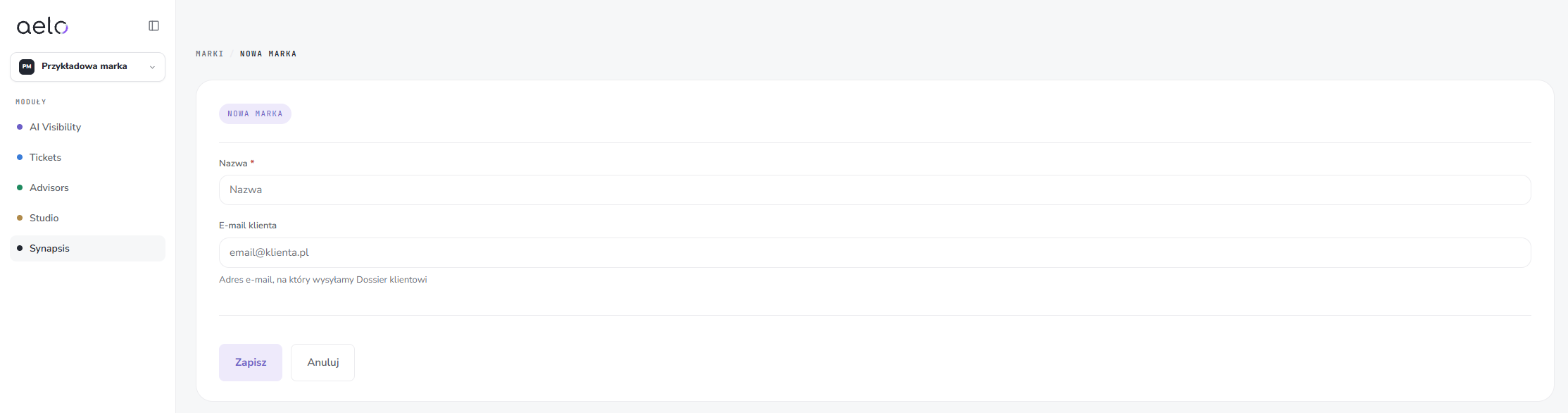
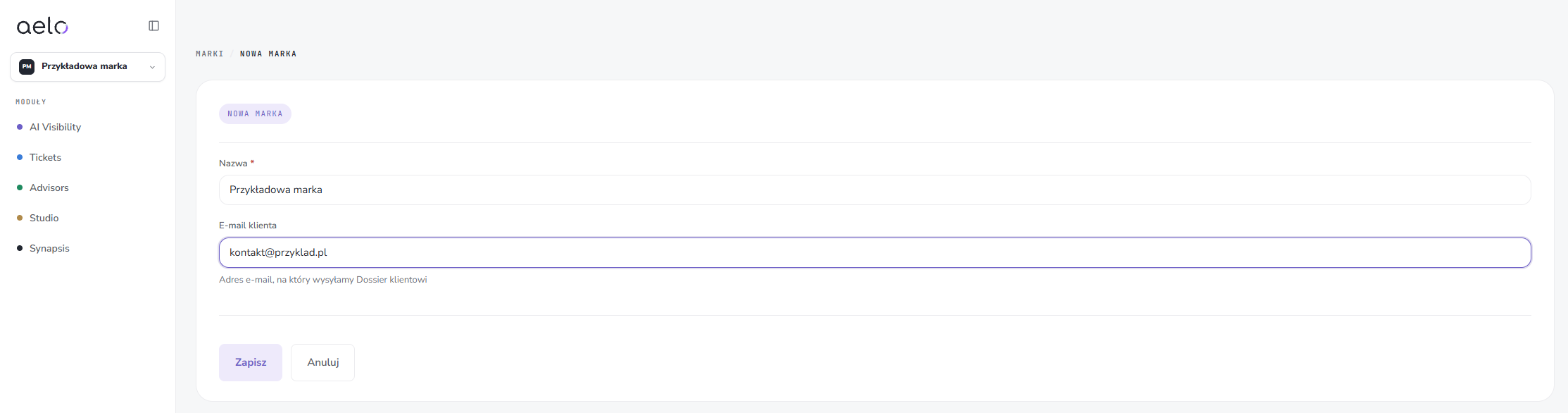
Click Save. This immediately opens Brand identity, and the brand appears in the brand menu and in the All brands view. The Cancel button closes the form without adding a brand.
If you manage several brands, you switch between them in the same menu in the top-left corner. The modules in the sidebar (AI Visibility, Tickets, Advisors, Studio and Synapsis) always show data for the active brand. You can return to each brand's identity later via the gear icon next to its name.
Enter the Website URL and click Fill in identity with AI (25 AC). Aelo reads your website and fills in the identity fields: brand description, industry, market, target audience and the remaining sections.
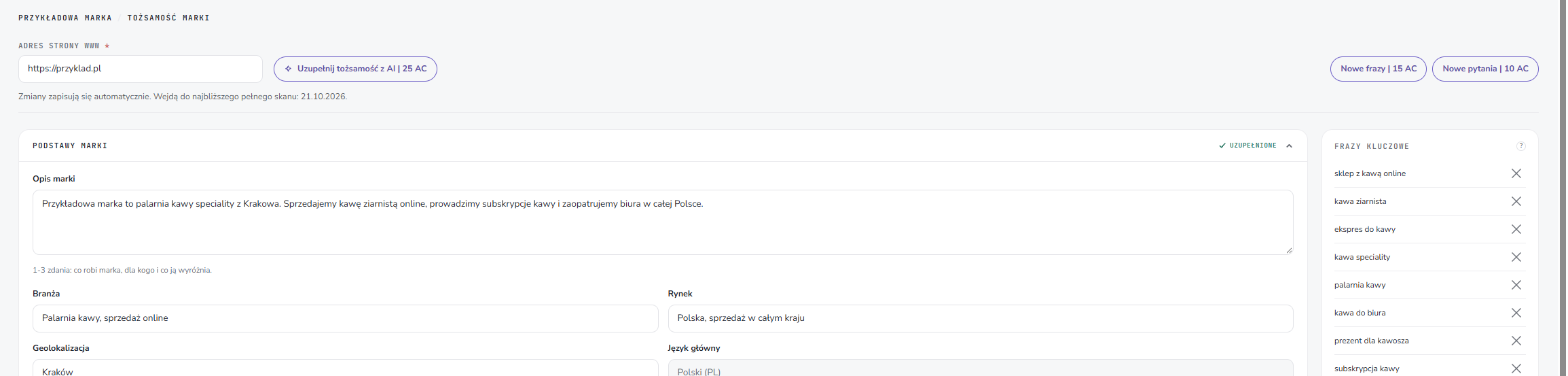
Prefer not to use AI? Expand the sections one by one and enter the details manually. It costs nothing, but takes longer.
Once the identity is filled in, you'll see a window with suggested keywords. Tick the ones that matter most to you and click Save. This step is essential: Aelo uses the selected phrases to measure brand visibility in AI. We explain how to choose good phrases in the article how to choose keywords.
The number of keywords depends on your plan. You can change them later in Brand identity, in the right-hand column.
Each identity section shows a tick or the number of items. Expand the Competitors section and add the companies you compete with: enter the name and domain. Add more using Add competitor. Skan will check whether AI chatbots recommend them instead of you. You can read more about choosing competitors in the article how to add competitors.
The Profiles section is worth filling in with links to the brand's profiles, although it is optional.
Review the whole identity and correct anything the AI read differently from what you intended. Fill it in as accurately as possible, because the quality of your scans depends on this data. Then click Run first scan at the top of the page. You don't have to wait at the screen: the result will appear in AI Visibility. We explain what happens during the process and when the results will be available in the article the first measurement in Aelo.
Brand identity has no save button. Changes are saved automatically and go into the next full scan.
The brand identity has six sections. Each one shows whether it is complete or how many items it has. The more accurate the data, the more relevant the scan questions and the better the tasks in Tickets.
On the right are the keywords, the phrases we use to measure the brand's visibility in AI. Add them manually (+ Add keyword) or with the button New keywords (15 AC). The button New questions (10 AC) generates new questions for the scan.
Read more about describing your brand well in our article on brand identity.
In the brand panel you will see the list Start with these steps. The progress bar shows how many steps you have completed. The list takes you through five steps:

Changes take time to show up in AI answers. We explain why in why changes take time.
No. Only the brand name is required. The client email is used to send the Dossier.
It depends on your plan. The Free and Starter plans include 1 brand, the Pro plan includes 3 brands.
Yes. You edit them in Brand identity. Changes save automatically and apply at the next full scan.
No. The Fill in identity with AI button (25 AC) reads your website and fills in the fields. It is worth reviewing and correcting them afterwards.
It's worth adding competitors, because the scan compares your brand with them. Profiles are optional: the Run first scan button appears without them too.
After the first full scan. You start it yourself with the Run first scan button once you've filled in the identity and chosen your keywords.
Didn't find the answer to your question? Visit Aelo Help or write to kontakt@aeloapp.io.